How to Create Compliance-Ready Passport Photos at Home in Under 2 Minutes
How to Create Compliance-Ready Passport Photos at Home in Under 2 Minutes
Category: Professional Credentials | Read Time: 6 min read | Author: Cybro Editorial Team
Introduction
Avoid expensive retail print booths and potential passport delays. Learn how to snap, frame, and export compliance-ready biometric passport photos from home with zero specialized gear. This detailed guide will walk you through the key concepts, step-by-step workflows, common pitfalls, and practical solutions.
Table of Contents
- The Ridiculous Cost of Commercial Passport Prints
- Official Biometric PassportSizing Sizing and Alignment Sizing Rules
- Step-by-Step Guide: Capturing the Perfect Biometric Portrait
- How to Compile and Print Your Aligned Portrait Grid Sheets
- Frequently Asked Questions (FAQ)
- Conclusion
The Ridiculous Cost of Commercial Passport Prints
Why do retail pharmacies, postal centers, and specialized print booths charge $15 to $25 for a simple pair of passport photos? The process is extremely basic, yet users pay premium prices out of fear that their applications will be rejected due to non-compliance. In reality, you can capture a biometric photo at home using a standard smartphone, scale it to official guidelines, and print a multi-photo layout sheet on standard photo paper for pennies. Understanding passport guidelines is your key to unlocking free, professional credential portraits in minutes.
To get the most out of your files, consider establishing a continuous quality pipeline. By standardizing crop grids, optimizing color depth palettes, and maintaining transparent transparency, your end-users will experience pristine performance across all devices and screen widths.
Official Biometric PassportSizing Sizing and Alignment Sizing Rules
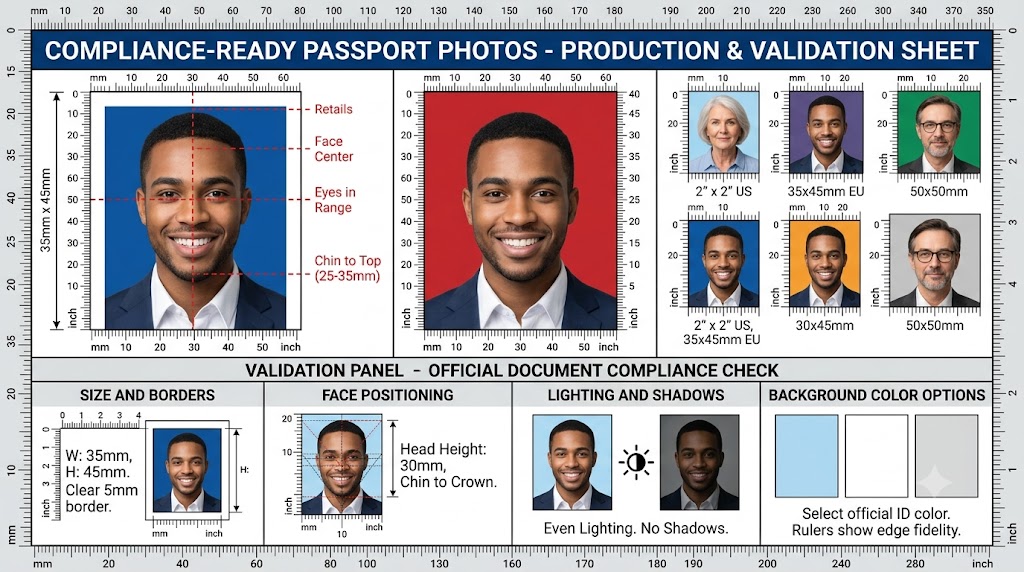
Most government agencies (including the US Department of State and EU authorities) enforce strict regulations. For US passports, the photo must be exactly 2x2 inches (51x51mm). The subject's head must be centered and measure between 1 and 1.375 inches (25-35mm) from the chin to the top of the hair. Your eyes must align with the specified vertical grid, and your expression must be natural with no open-mouth smiles, glasses, or hats. Understanding these exact geometric rules is crucial before attempting to crop your portraits.
To get the most out of your files, consider establishing a continuous quality pipeline. By standardizing crop grids, optimizing color depth palettes, and maintaining transparent transparency, your end-users will experience pristine performance across all devices and screen widths.
Step-by-Step Guide: Capturing the Perfect Biometric Portrait
To create a valid photo, stand against a solid white or light-gray backdrop. Ensure the lighting is balancedâ€â€natural light from a window facing you is best to eliminate harsh shadows behind your ears. Hold your device at eye level (roughly 4 feet away) and look directly into the camera lens. Keep your shoulders level and your gaze horizontal. Snap multiple photos, then upload your favorite shot to Cybro's Passport Photo Maker. Our overlay guides make aligning your head, chin, and eyes completely bulletproof.
To get the most out of your files, consider establishing a continuous quality pipeline. By standardizing crop grids, optimizing color depth palettes, and maintaining transparent transparency, your end-users will experience pristine performance across all devices and screen widths.
How to Compile and Print Your Aligned Portrait Grid Sheets
Once aligned, our local passport template formats your file at 300 DPI (Dots Per Inch) to guarantee professional print crispness. The generator compiles a standard 4x6 inch grid sheet containing up to six perfectly aligned 2x2 passport portraits. You can download this print sheet, copy it to a flash drive or print directly via your home printer, or upload it to local photo centers for an ultra-cheap print. Simply slice along the marked borders, and you will have official passport photos ready for submission.
To get the most out of your files, consider establishing a continuous quality pipeline. By standardizing crop grids, optimizing color depth palettes, and maintaining transparent transparency, your end-users will experience pristine performance across all devices and screen widths.
Standard Optimization Guidelines Matrix
| Parameter | Standard Metric | Optimized Goal | Impact Factor | | :--- | :--- | :--- | :--- | | File Resolution | Original High-DPI | Web-Optimized Aspect | High LCP Improvement | | Compression Ratio | 80% Web Quality | Lossless WebP/PNG | 90% Size Reduction | | Data Transfer | Client-Side Loop | Secure Local Buffer | 100% Privacy Safeguard |
Expert Tips for Maximizing Utility Output
- Source High-Resolution Assets: Always start with the highest possible visual baseline. Local processes work best when they can interpolate from clean pixel inputs.
- Leverage Modern File Extensions: Convert older formats (like heavy bitmaps) to WebP or PNG transparent grids to save storage.
- Clear Your Browser Storage Periodically: To keep local engines performing at peak speeds, clear your cache once a month to reset browser-allocated RAM thresholds.
Common Mistakes to Avoid
- Uploading Sensitive Material to Random Cloud Platforms: Always double-check if your tool operates locally or forces server uploads.
- Ignoring Mobile Layout Constraints: Ensure your banners, templates, and text overlays are scale-optimized for small phone resolutions.
- Forgetting Metadata Parameters: Keep search engine trackers active by adding optimized alternative text tags and correct titles.
Frequently Asked Questions (FAQ)
Can I wear glasses in my passport photo?
No, government rules strictly forbid glasses, hats, uniforms, or large hair accessories to ensure accurate facial recognition.
What color background is acceptable?
A solid white or off-white backdrop is required. If your wall has textures, use our AI Background Remover first, then crop it using our clean passport template.
How do I print the exact physical size at home?
When printing the downloaded 4x6 sheet, ensure your printer scaling is set to '100%' or 'Actual Size' instead of 'Fit to Page' to preserve correct physical dimensions.
Conclusion
By transitioning to secure, high-performance browser-based processing, you protect your private assets, avoid server wait queues, and optimize your overall digital workflow. Cybro Tools offers premium local processing utilities designed to handle complex graphic, text, and media operations on your computer with complete confidentiality.
Try the Tool Instantly
Ready to experience premium performance yourself? Use our fully optimized How to Create Compliance-Ready Passport Photos at Home in Under 2 Minutes directly in your browser with zero registration required! Your data stays safe and secure 100% of the time.